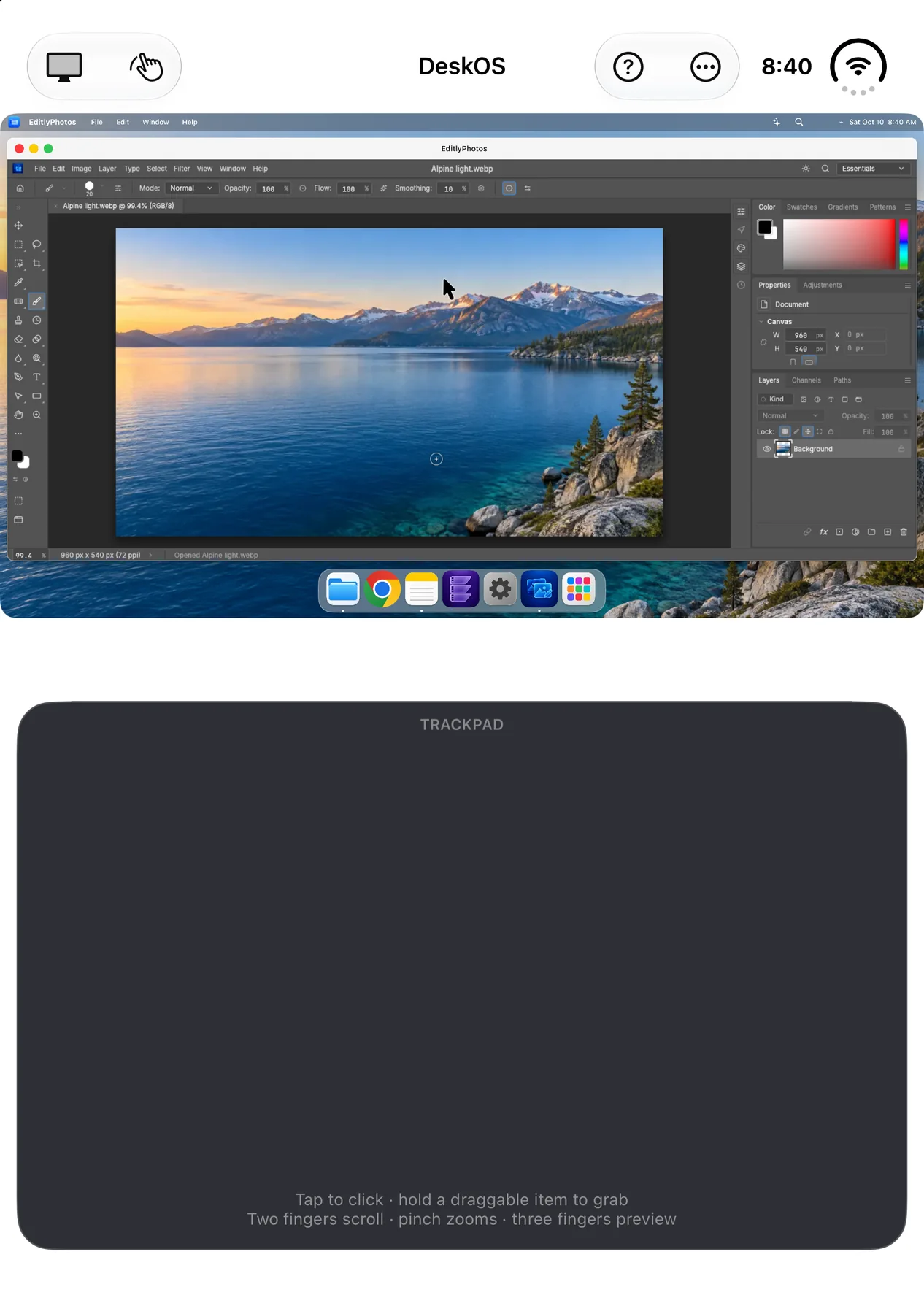
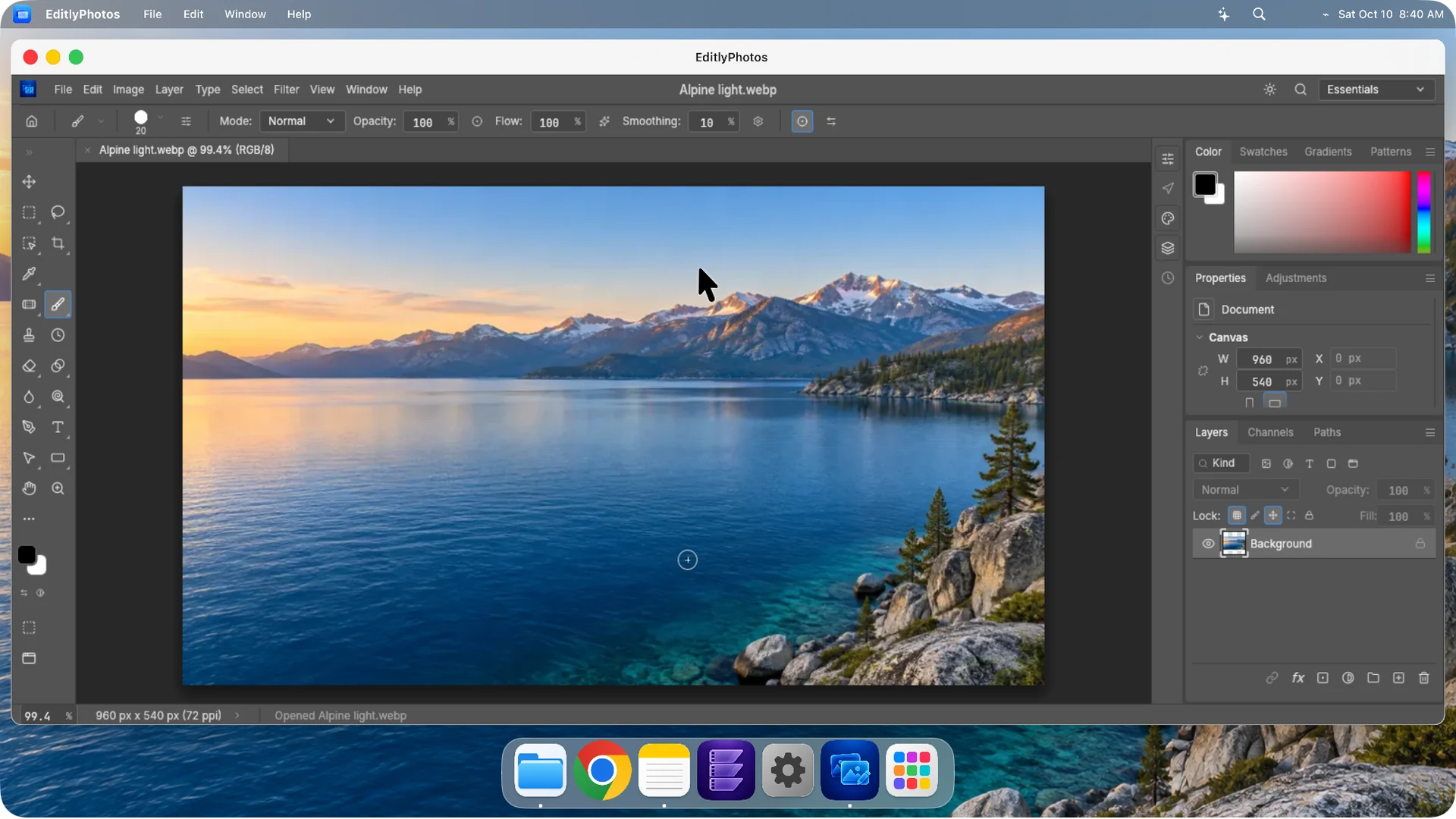
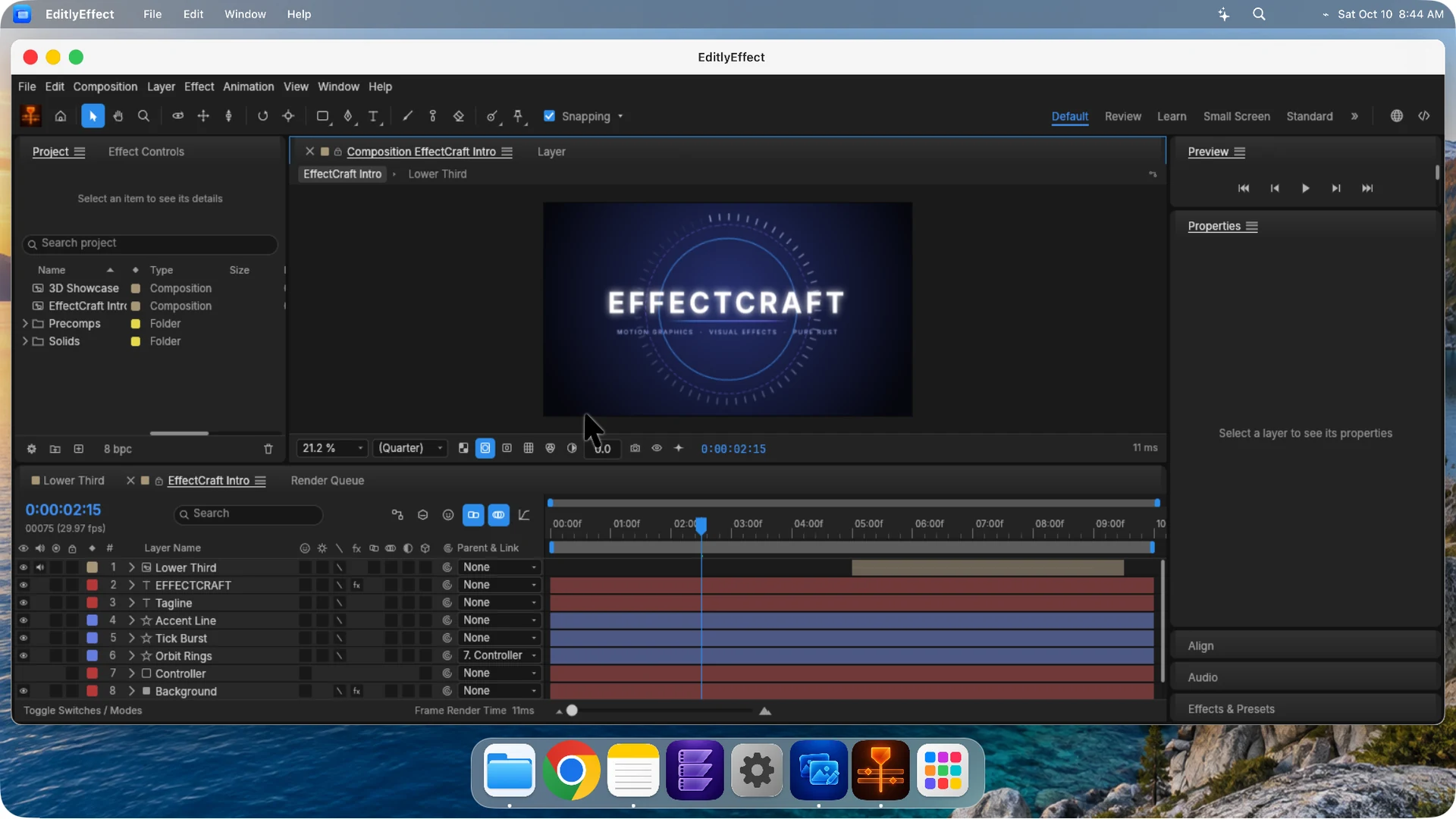
EditlyPhotos, EditlyEffect and DeskOS Assistant are included in DeskOS 1.1.1. Update through the App Store to access them. Optional AI use requires your own supported API account; provider charges may apply.
Built with open-source contributions from PhotoCraft and EffectCraft. Credits and licenses are included in DeskOS.
DESKOS ON IPHONE DUO
Small in your pocket. Limitless in your hands.
Open a new way to work. Explore DeskOS as your workspace unfolds.
EXPLORE IN 3D
02 / HALF FOLDED
Set down. Set your ideas free.
Find your flow with a desktop and trackpad, together.
↔LOADING YOUR WORKSPACE
MAKE IT YOUR WORKSPACE
OPEN UP YOUR WORKSPACE
Real DeskOS simulator screens. Illustrative 3D device. Drag to unfold, or select Rotate to look around.
✦
Select an app → Ask for a change
YOUR TOOLS. A LITTLE HELP.
DESKOS ASSISTANT · AVAILABLE IN 1.1.1
An idea is a good place to start.
Select a supported app, describe what you want, and let your assistant help with the work.
Create an EditlyEffect composition from a description.
Help with supported photo edits, text and file tasks.
Draft text and fill supported browser forms. You review and send.
Connect your own OpenAI or Claude API key and choose an available model. Provider usage is billed separately. A ChatGPT or Claude subscription alone does not include API access. You control sharing, Stop and supported Undo actions.
NEW DESKOS CODE DROP
A fresh start. On us.
Free DeskOS codes are back. Verify your email to claim one while this limited batch lasts.
DeskOS 1.1.3 is now available with easier keyboard sign-in, improved external-display handling and creative recovery copies. Already have DeskOS? Update it free in the App Store.
Claim your free code.
Use your own email and Apple Account region. An email verification is required before a code is assigned.
Checking live code availability…
Submitting the form does not reserve a code. One code per person; existing recipients recover their original code. Redeem this batch before November 24, 2026 at 22:49 UTC. Terms and expiry.
Want a heads-up for future codes and DeskOS updates?
Subscribe to DeskOS news.
Get new features, tips and future free-code announcements in your inbox.
Checking email signup…
Check your inbox and confirm your email to join. Signing up does not reserve a code or guarantee another giveaway. Unsubscribe anytime.
DeskOS · Mazen Ash LLC 30 N Gould St, Ste R, Sheridan, WY 82801, USA hello@deskos.live
A little clarity goes a long way. Here’s what to expect from DeskOS.
What do I need to use DeskOS?+
DeskOS runs on iPhone with iOS 17 or later. For a desktop on an external display, you need an iPhone and cable or adapter that support video output, plus a compatible monitor or TV. USB-C iPhone 15 models or later with video output are a straightforward starting point. A keyboard is optional; the phone provides a trackpad and onscreen keyboard.
AirPlay behavior depends on your receiver and iOS. DeskOS needs to remain in the foreground for its interactive workspace. See the connection guide before choosing accessories.
Can I run my installed iPhone apps in windows?+
DeskOS windows contain its built-in tools and websites you open in its browser. iOS doesn’t allow DeskOS to embed arbitrary apps installed on your phone. Website shortcuts open the web version of a service, with features and login support determined by that provider.
DeskOS is an independent iPhone app, not macOS, and is not affiliated with Apple, Google, or other website providers.
Can I use a Bluetooth or USB mouse?+
A compatible mouse can work when iOS exposes its input. On iPhone, enable AssistiveTouch in Settings → Accessibility → Touch → AssistiveTouch. DeskOS includes a Mouse Test under Help & Diagnostics so you can check whether movement reaches the app.
Mouse behavior depends on your iOS version, mouse, and connection. DeskOS’s built-in phone trackpad works independently of a physical mouse. View mouse setup and troubleshooting.
Where are my files and projects stored?+
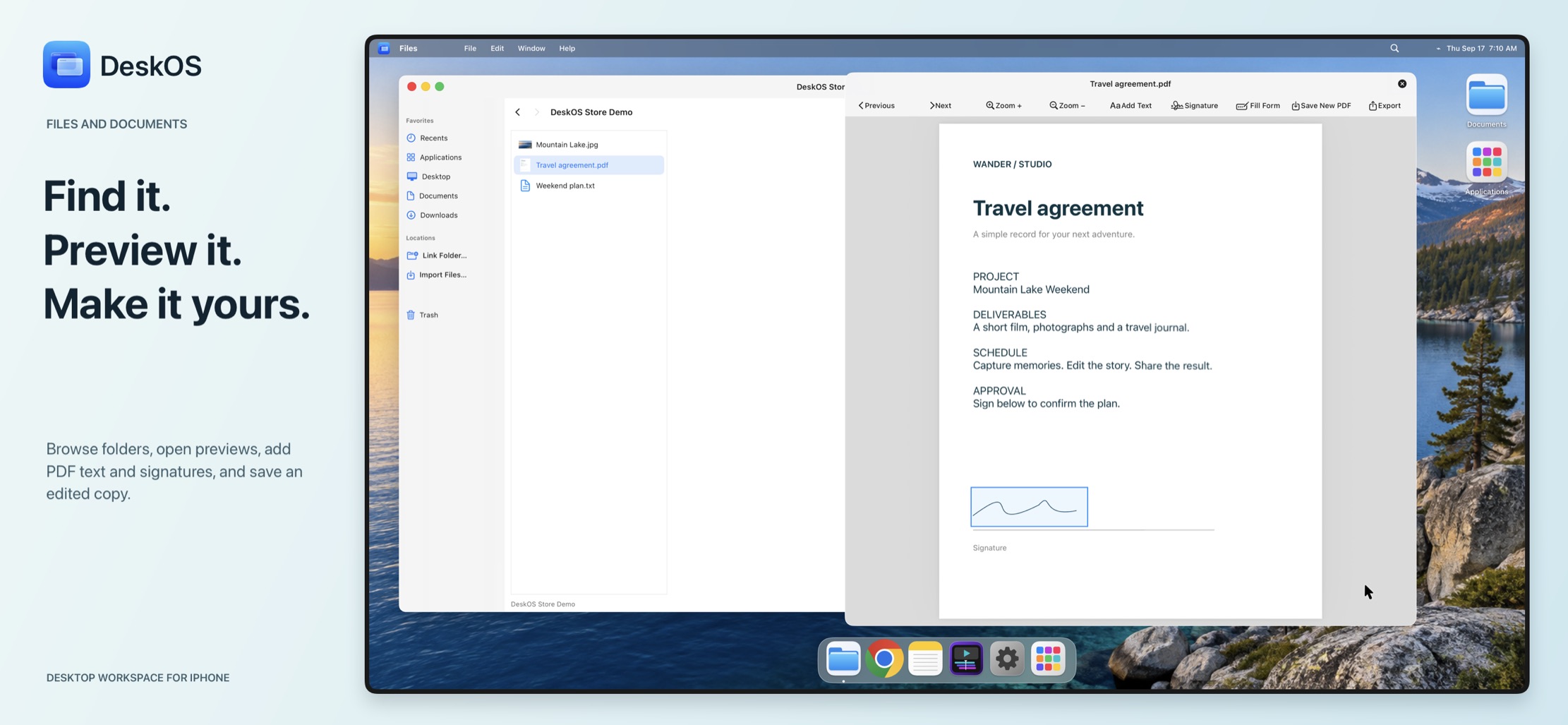
Your workspace and app documents are stored on your device. Files can also access folders you explicitly select with the iOS file picker. It cannot browse other apps’ private storage.
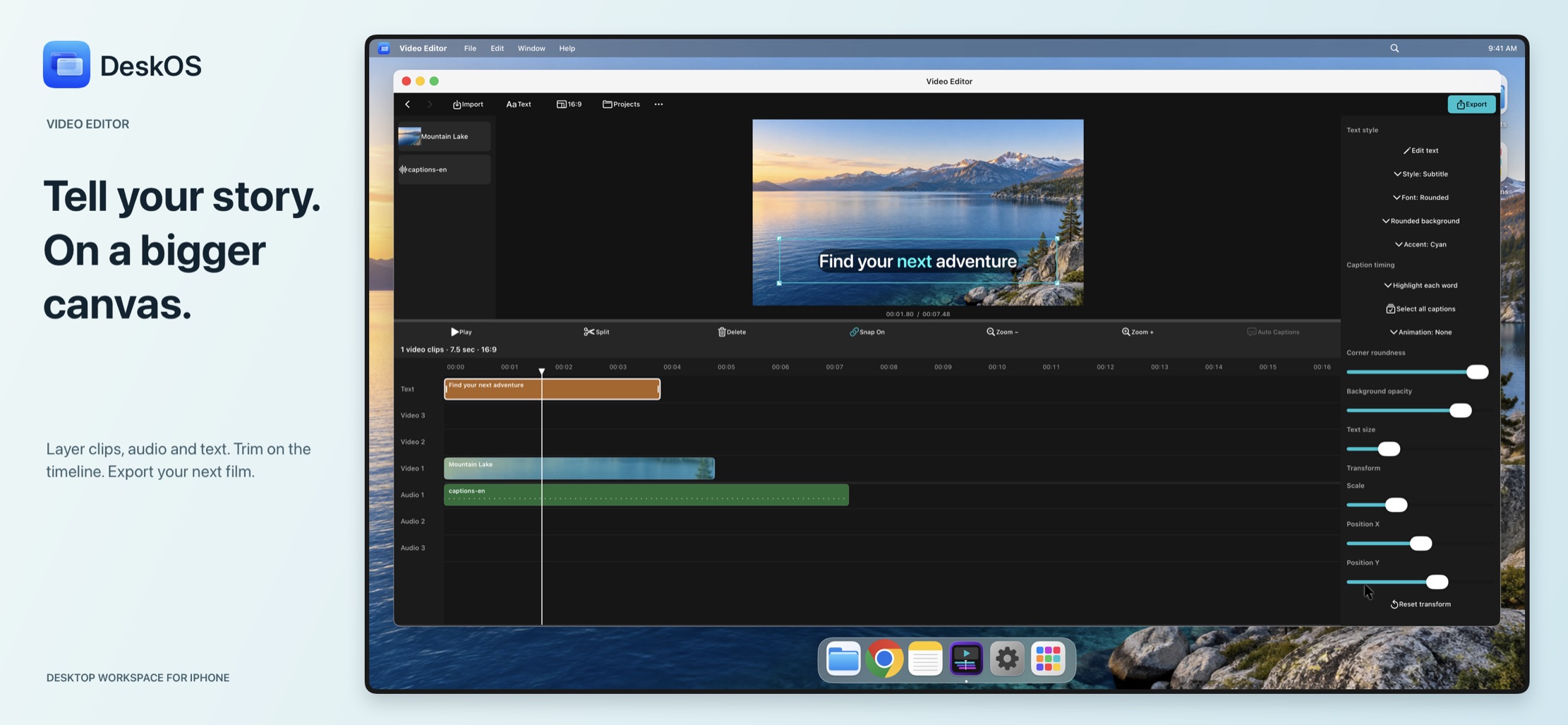
Video projects save your edit decisions and references to media. Keep the originals available so projects can reopen. Project metadata, thumbnails, caches, and exports still use storage; some file providers may need to download or copy media.
Will my websites and accounts work?+
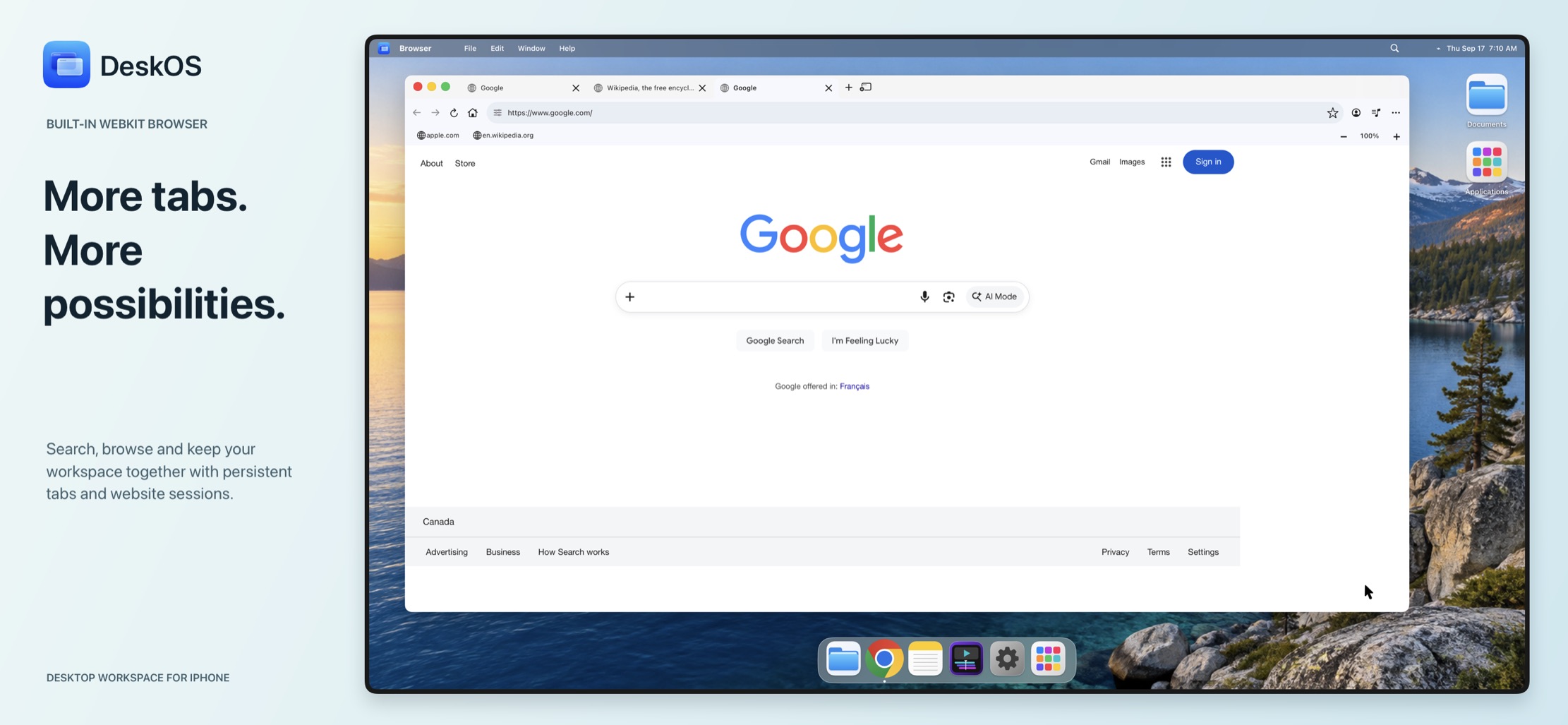
The built-in browser uses Apple’s WebKit and can retain website data and supported sign-in sessions on the device. Some websites restrict embedded browsers, authentication, protected video, or complex editing controls. A familiar browser layout does not mean DeskOS includes Google Chrome or Chrome Sync.
Google services, WhatsApp linking, and other web tools may not support every workflow. Check the services you depend on; universal website compatibility is not promised.
Does DeskOS collect my data?+
DeskOS stores your workspace on your device. Websites and optional AI providers process information you choose to share with them. This website uses your email for code delivery, recovery and support. Future-code emails require a separate, confirmed opt-in; you can unsubscribe at any time. It has no advertising trackers or analytics scripts. Read the privacy policy for details.
Can I download DeskOS now, and what does it cost?+
Yes. DeskOS is live on the App Store and ready to use on iPhone and iPad with iOS or iPadOS 17 or later. Download DeskOS on the App Store and open the app to get started.
DeskOS is a one-time app purchase. Apple shows the current price, applicable taxes, and availability in your region. Purchases are handled through the App Store.
YOUR NEXT WORKSPACE IS ALREADY IN YOUR POCKET
Give your ideas a little more room.
DeskOS is live on the App Store. Download it and start using your workspace today.
Download on the App Store ↗One-time purchase · See your regional App Store priceAvailable now for iPhone and iPad.
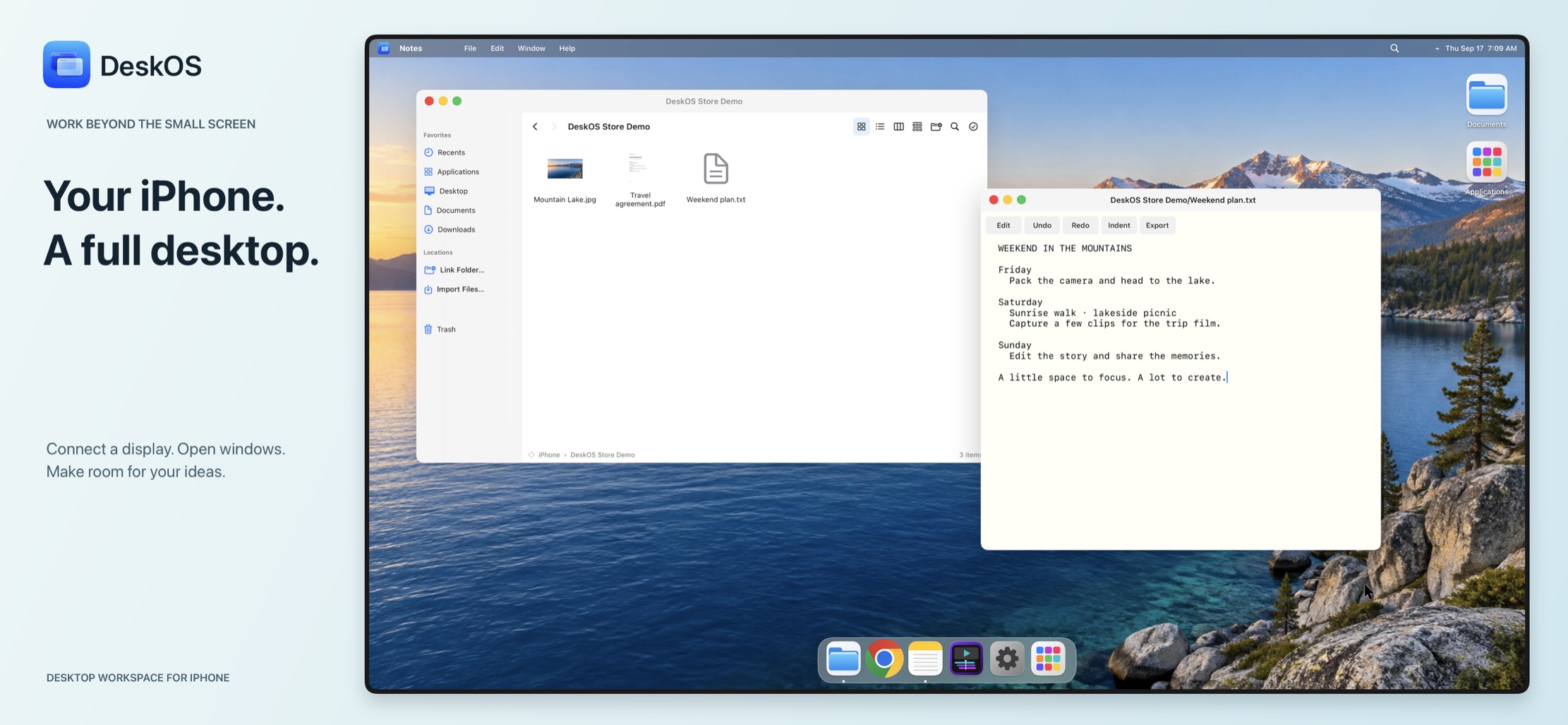
 Find your
 Available now